Article
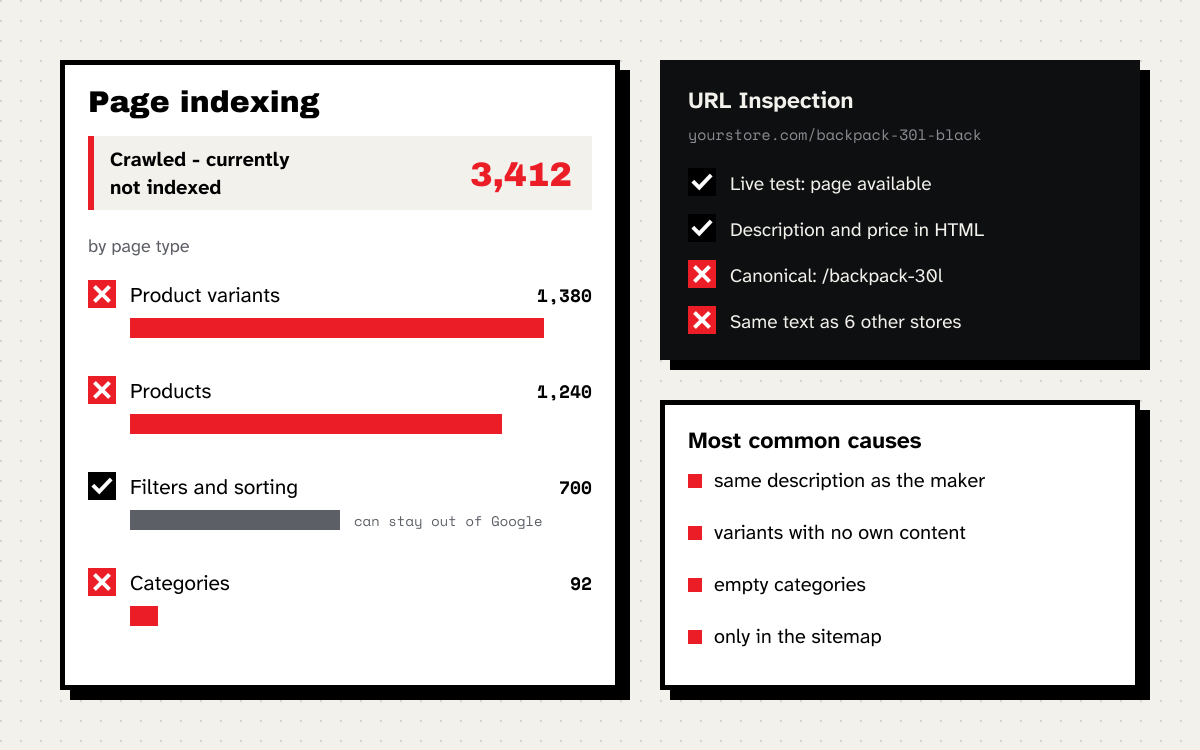
You open the page indexing report in Search Console and see a few thousand URLs with the status “Crawled - currently not indexed”. Among them are products you sell. Google visited those pages, fetched them and decided not to show them.
This status can be completely harmless, or it can mean the store is losing sales on hundreds of products. Below I explain how to tell the two apart, how to diagnose it in a store with thousands of URLs, and what actually helps versus what wastes your time.
What this status means
Google describes it in Search Console Help in a few words: the page was crawled by Google but not indexed. It adds two important things. Google does not index all pages on the web, so this is a common message that does not necessarily indicate a problem. And if it affects important pages, you should check them with the URL Inspection tool.
In practice it means the crawler fetched the page, assessed it and decided it was not worth adding to the index. At least for now. There is no technical error blocking indexing here, because then the report would show a different reason, such as a noindex tag or a robots.txt block.
It is easy to confuse with the neighbouring status “Discovered - currently not indexed”. The difference matters:
- crawled, not indexed: Google fetched the page and decided not to index it. The problem usually lies in the page itself: content, duplication, value.
- discovered, not indexed: Google knows the URL but has not fetched it yet. According to the help page this is usually because fetching it was expected to overload the site, so the crawl was rescheduled. The problem lies more in server performance and the number of URLs the store produces.
When you can ignore it
Google says plainly not to expect every URL on a site to be indexed, and to make sure only that the most important pages are. In a store this status often collects URLs that should not be in Google anyway:
- filter and sort combinations,
- further list pages with parameters,
- internal search results,
- tag and blog archive pages with one or two posts,
- URLs with campaign parameters.
If the status contains only URLs like these, Google is doing you a favour. It is still better if it does not fetch them at all. I described how to limit that in the post about faceted navigation.
When it is a problem
The status is a problem when it affects pages that are meant to earn: products on sale, categories with search demand and guides that lead to a purchase. The simplest test: are these URLs in your sitemap? If they are, you want them in Google, and Google disagrees with you.
The second signal is the trend. If the number of pages in this status grows week after week while the number of indexed products falls, it will not sort itself out.
How to diagnose it step by step
On a small site it is enough to open a few URLs. In a store with thousands of products you have to work in groups, because the cause almost always affects a whole template, not a single page.
1. Split the sitemap by page type
In the page indexing report you can narrow the view to a specific sitemap. If the store has separate sitemaps for products, categories and posts, you see straight away which page type has the problem. If it has one shared sitemap, it is worth splitting it. It is one of the cheapest changes that makes diagnosis easier for years.
2. Group the example URLs
Download the list of example URLs for this status and paste it into a spreadsheet. Two Google Sheets formulas are enough to see the pattern. The first extracts the first path segment, which is usually the page type:
=REGEXEXTRACT(A2, "^https?://[^/]+/([^/?]+)")
The second checks whether the URL has parameters:
=IF(REGEXMATCH(A2, "\?"), "parameter", "clean URL")
Then a pivot table on those two columns. Usually you see the pattern at once, for example that 70% are product variants and 20% are filters. Then you know where to start.
3. Check a few URLs from each group
For each group open three or four URLs in the URL Inspection tool and run a live test. For a page that is not in the index, only the live test shows the fetched HTML and a screenshot. Check three things:
- whether the content is in the fetched HTML: product description, price, links to categories. If the description loads only after a click or through a script Google did not run, the crawler sees an empty page,
- which canonical URL the page declares and whether it is the one you want in Google,
- whether the page differs from the other pages in its group. If ten variants share a description and differ only by the color in the title, Google treats them as copies.
4. Compare with what ranks
Search Google for the name of a product that is not indexed. If the first page shows the manufacturer and five stores with the identical description, and your page has that description and nothing else, Google has no reason to add a sixth copy. In its guidance on creating helpful content Google asks, among other things, whether the content provides substantial value compared to other pages in search results. The same logic applies to product pages.
The most common causes in stores and what to do about them
| Cause | How to spot it | What to do |
|---|---|---|
| Variants as separate pages | URLs differ by color or size, same description | Canonical from variants to the main product, or one page with a variant picker |
| Description copied from the manufacturer | The same text in results across many stores | Your own descriptions, starting with the best selling products |
| Empty or near empty categories | A category with one or two products | Merge with the parent category, fill it, or keep it out of the index |
| Permanently discontinued products | A page with no price and no buy button for months | 301 redirect to the successor or the category, or a 404 or 410 code |
| Filters, sorting, pagination with parameters | URLs with a question mark | Block low demand parameters in robots.txt, link without parameters |
| Weak internal linking | Product reachable only via search and the sitemap | Links from categories, guides and related product blocks |
| Content loaded by script | No description or price in the fetched HTML | Description and price in the HTML straight away, without waiting for a script |
A few notes on the table. A canonical URL is a hint for Google, not a directive, as Google says in its documentation. If variants differ by something people search for, such as “women’s trekking boots size 38”, they may deserve their own pages. Then they need their own content, not just a different name.
With descriptions you do not have to rewrite the whole catalogue. Start with the 50 or 100 products that bring the most sales or have the most search demand. Add what the manufacturer’s description lacks: what the product is compatible with, who it is for, how it differs from the cheaper model, answers to questions customers ask by email.
What not to do
- Do not click “Request indexing” for hundreds of URLs. Search Console Help says plainly that there is a daily limit on such requests and that a request does not guarantee indexing. If the cause lies in the page content, Google will fetch it again and make the same decision. For many changed pages Google recommends a sitemap with an up to date
lastmod. - Do not use the Indexing API for products. According to the documentation it is only for job postings and livestreams.
- Do not force in random SEO paragraphs. A hundred words of generic text under each product will not set it apart from competitors, and it adds work with every update.
- Do not remove pages from the sitemap to make the report look better. The problem disappears from view, but the products are still not in Google.
How to check whether the fixes worked
Once you have fixed the cause across a whole group of pages, click “Validate fix” in the report. Google says validation typically takes up to about two weeks, but sometimes longer. Meanwhile watch three things:
- the number of indexed pages in the sitemap for that page type, for example products,
- the number of pages in the “crawled, not indexed” status in the same sitemap,
- clicks from Google on pages in that group, year over year. I explained separately why average position is a poor guide here.
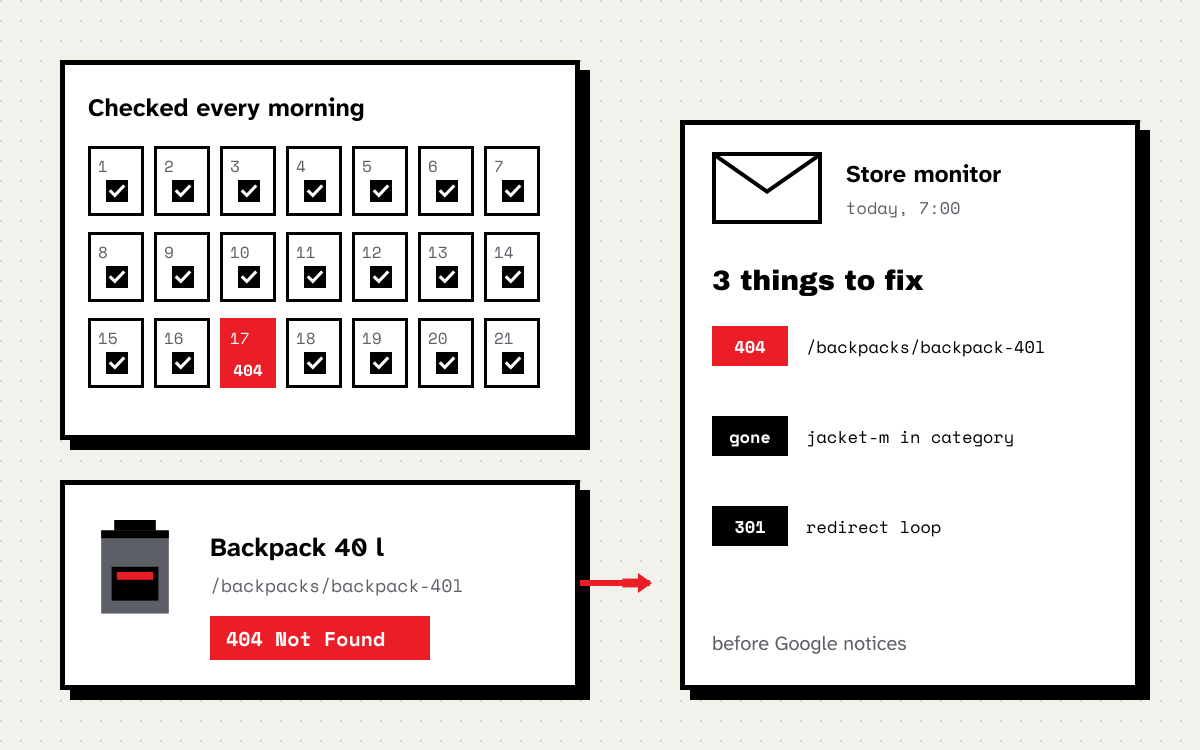
Between reviews it helps to have something watching the store every day. I use my own store monitor, which checks what disappears from the sitemap and what starts returning errors before it shows up in traffic.
Checklist
- Are URLs from your sitemap in this status? If not, you probably do not need to do anything.
- Which page type dominates: products, variants, categories, filters?
- In the live test, are content, price and links in the fetched HTML?
- Does the canonical URL point to the right page?
- Does the page differ from others in its group and from competitors in the results?
- Does the product have links from categories and other pages, not just from the sitemap?
- Are filters and sorting blocked, or at least not linked?
- After the fixes: validation in Search Console and watching the number of indexed pages in the sitemap.
If this status affects hundreds of products in your store and you do not know where to start, that is exactly the kind of problem a store SEO audit solves. You can also book a free call and show me the report. I will tell you what it says.